What Is a NAS, and Do You Need One at Home?

Your phone says storage is full again. Half your photos sit in one cloud account, the rest in another, and the doorbell camera deletes every clip after 30 days unless you add a third plan. Each one is a small monthly charge. Together they are a bill for renting space you could own, and a home NAS is one way to stop paying it.
A NAS keeps all of that in one place, on your own network, with no monthly fee. If your household pays for more than one storage plan, or you want camera footage that stays at home, a NAS is worth a look. If you have one laptop and a few hundred photos, it is not, and this guide will say so.
Some links in this post are affiliate links. As an Amazon Associate, SmartHomeLabs earns from qualifying purchases, at no extra cost to you.
What Is a NAS?
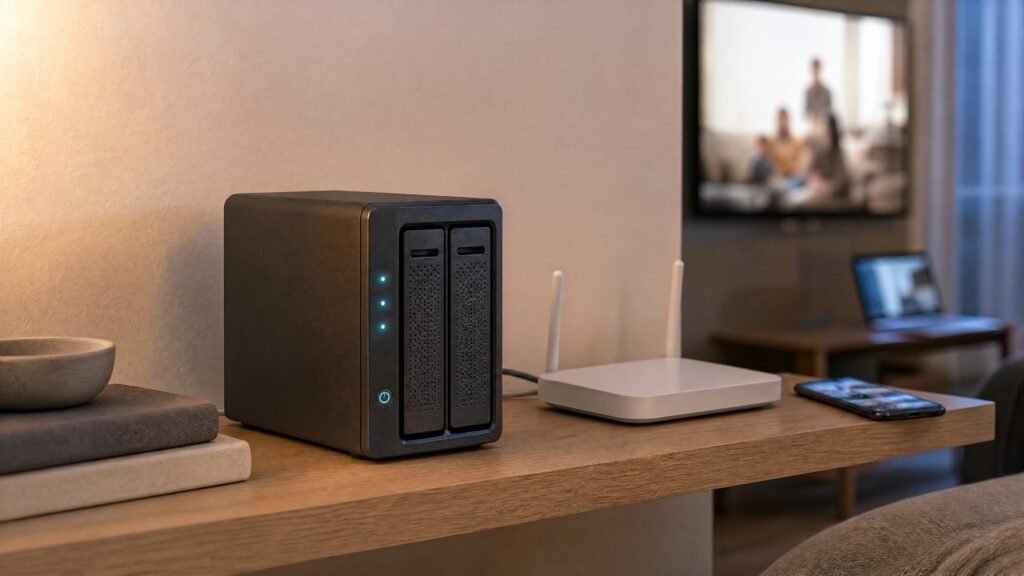
NAS stands for network attached storage. The box is a small, low-power computer with bays for hard drives, and it connects to your router with a cable instead of to one computer. Every phone, laptop and TV in the house can reach it at the same time.
Its own software, managed from a browser or a phone app, turns those drives into backups, a photo library or a media server.
Most units are sold diskless. The price on the box covers the enclosure only, and the drives are a separate purchase that often costs as much as the NAS itself.
Two or more drives are usually set up as RAID, which spreads your data across them so the box keeps running if one drive fails. Remember that last part. It comes back later.
What People Use a Home NAS For
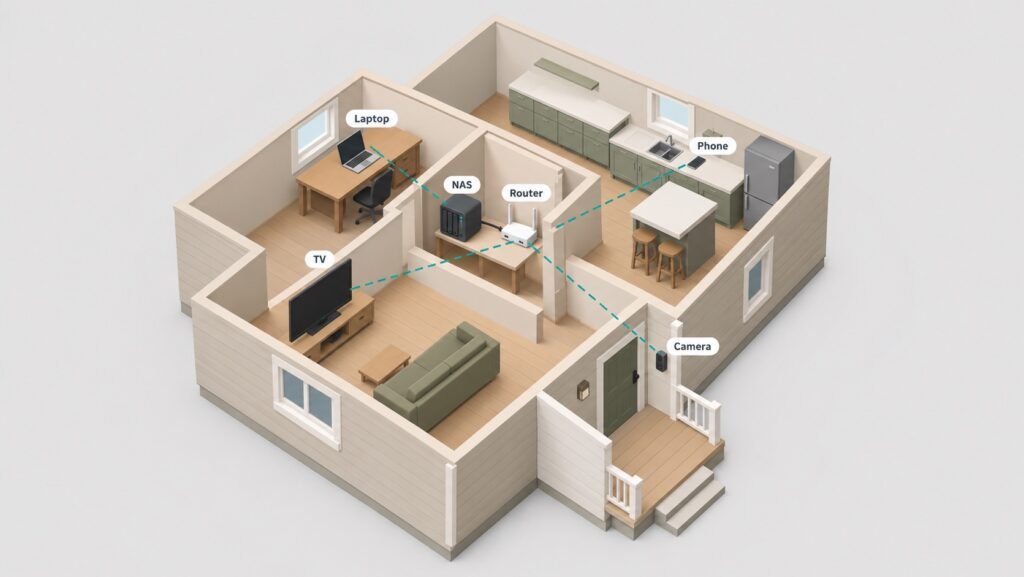
Automatic Backups for Every Device
Windows and Mac computers can back up to a NAS on a schedule, and phone apps can copy new photos the moment you get home. Nobody has to remember to plug in a drive.
A Private Photo Library
Every major NAS brand ships a photo app that sorts pictures by date, place and face, like the big cloud services, but the storage is a one-time purchase. If you have ever run the numbers in the hidden math behind your smart home subscriptions, this is the same math applied to cloud storage.
A Media Server
Store your movie and music files once and stream them to any TV in the house with Plex or Jellyfin. The NAS does the work of converting a file into a format each TV can play, which is where the processor starts to matter.
Local Camera Recording
Many NAS units can record security cameras directly, so footage stays on your network instead of on a paid cloud plan. Check that your camera supports a standard video feed first. The complete doorbell camera guide covers which doorbells work without a subscription.
NAS vs Cloud Storage vs an External Drive
An external drive is the cheapest way to back up one computer, and the easiest to forget.
Cloud storage works from anywhere, and a house fire cannot reach it. You pay for that every month, and the price rises as your library grows.
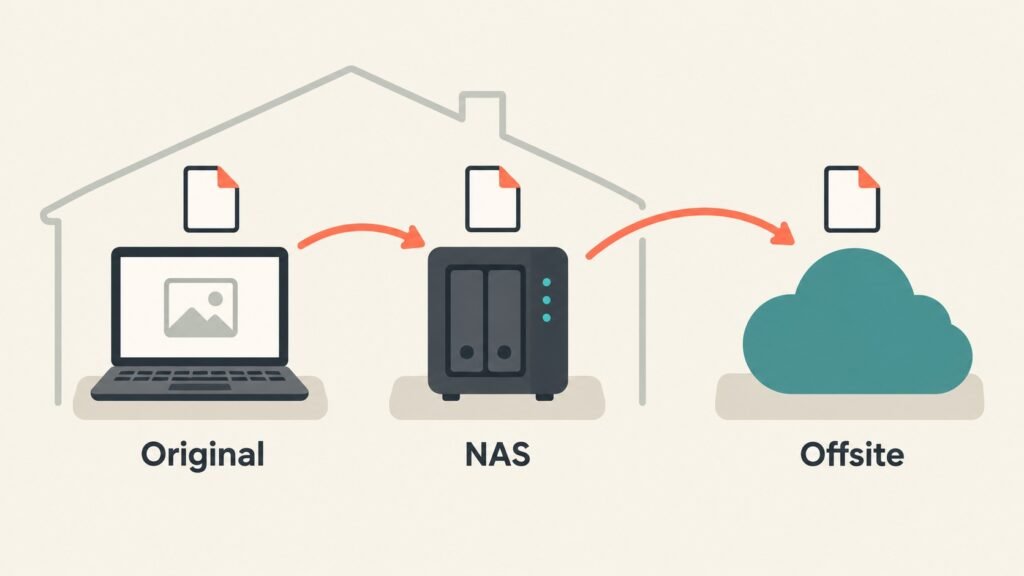
A NAS costs more on day one, then little beyond electricity, and it backs up every device automatically. The catch is that it lives in your house, so anything that destroys the house destroys the NAS too. That is why the best setups pair a NAS with a small cloud backup of the files that matter most.
Setting Up a NAS: The Short Version
Details change by brand, but the steps do not.
- Choose two or four bays. Two bays covers most homes. Four leaves room to grow without replacing anything.
- Buy NAS-rated drives. Drives built for always-on use, in matching sizes.
- Wire it to your router. A NAS needs Ethernet. If the router sits somewhere awkward, weak WiFi in one room covers your options for running a cable or moving the router.
- Pick a RAID mode. With two drives, choose mirroring, which keeps an identical copy on each.
- Set up backups, including one copy off the NAS. More on this below.
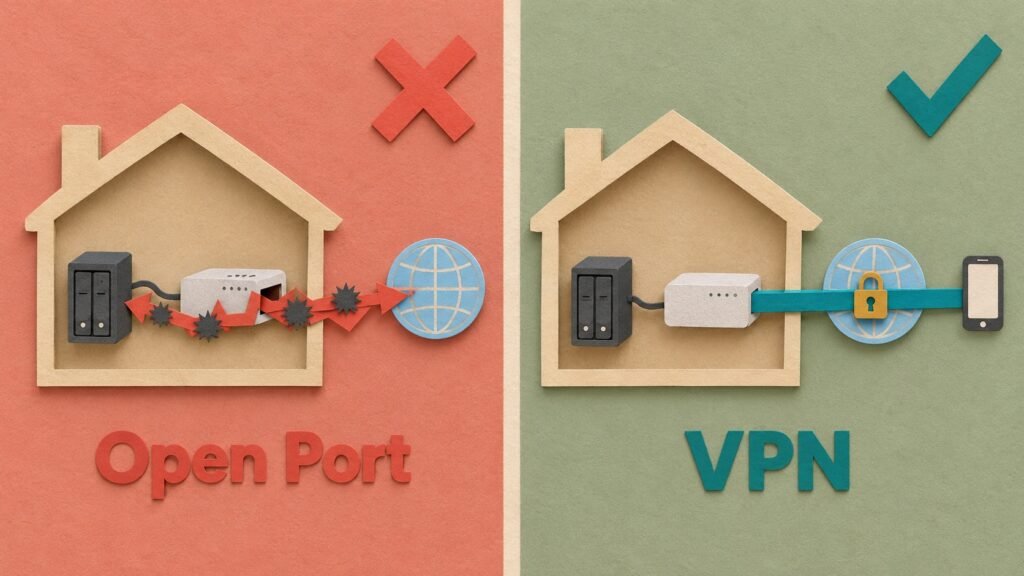
- Set up remote access the safe way. Use the maker’s own remote access service or a VPN.
⚠️ Keep it off the open internet: Never open your NAS to the internet with port forwarding or UPnP. Ransomware campaigns have encrypted home NAS units that were reachable this way. QNAP’s own security advisory tells owners not to expose the NAS to the internet, to remove port forwarding rules, to switch off UPnP and to keep the operating system updated.
What to Look For
For a first NAS, the decision comes down to software, processor and how many bays you need.


Synology DS225+: The two-bay pick for beginners who want the most polished software and the widest choice of apps, including Synology’s camera recording app. Its Intel processor handles video conversion for Plex.
UGREEN DXP2800: The two-bay pick for more processor and memory at its price, with two slots for fast SSD storage. UGREEN’s software is newer and has fewer apps.
UGREEN DXP4800 Plus: The four-bay pick for a large media library or a household that expects to keep adding drives.
WD Red Plus 8TB: A CMR drive built for NAS use. Buy two of the same size. Seagate IronWolf drives are the common alternative.
💡 Check the part number: Avoid desktop drives and older plain WD Red models with EFAX in the part number. Many use SMR recording, which can stretch a RAID rebuild from hours into days. Check the NAS maker’s compatibility list as well. Synology in particular has changed its rules on third-party drives more than once since 2025.
What a NAS Will Not Do for You
It is not a backup on its own. RAID protects against one drive dying. It does not protect against a deleted folder, ransomware, theft or a flood, because all of those reach every drive at once. The US government’s guide to data backup options sets out the 3-2-1 rule: three copies of anything important, on two kinds of storage, with one kept outside your home. A NAS can hold one or two of those copies. It cannot be all three.
It will not fix a slow network. Over WiFi, a NAS is only as fast as the weakest link between it and you.
It needs some care. Updates and drive warnings are your job now, not a cloud company’s.
Cheaper models struggle with 4K streaming. If a TV cannot play a file directly, the NAS has to convert it, and low-end processors fall behind. Check for hardware transcoding if a media server is the main reason you are buying.
Three Questions to Ask Before You Buy
How much storage do you use today? Add up every cloud plan and full drive, then double it. That number decides the drive size.
What do you pay for storage each month? If it is a few dollars, the cloud is probably cheaper. If it covers several plans and a camera subscription, the NAS starts to win over a few years.
Can it sit next to the router? It needs a wired connection and some airflow.
The One Thing to Do First
Before you shop, write down what you pay for storage each month, across every cloud plan and camera subscription, and multiply it by 36. If that figure is higher than a two-bay NAS and two drives, you know what a home NAS is worth to you, and whether you need one. Once your files are covered, what to monitor at home covers the sensors that protect the rest of the house.