2.4 GHz vs 5 GHz: Why Your New Smart Device Will Not Connect

The plug is in the wall and its light is blinking. Your phone shows full WiFi bars. You type the password a third time, and the app still says the connection failed. Nothing on the screen mentions 2.4 GHz vs 5 GHz, and that is the first thing to check.
Your router broadcasts on two bands. Most smart plugs, bulbs and sensors can use only one of them, and your phone is probably sitting on the other. This guide explains the two bands in plain words, shows why setup fails, and gives you four free fixes. Start with the easiest: carry the device and your phone a few rooms away from the router and try again.
What the Two Bands Are
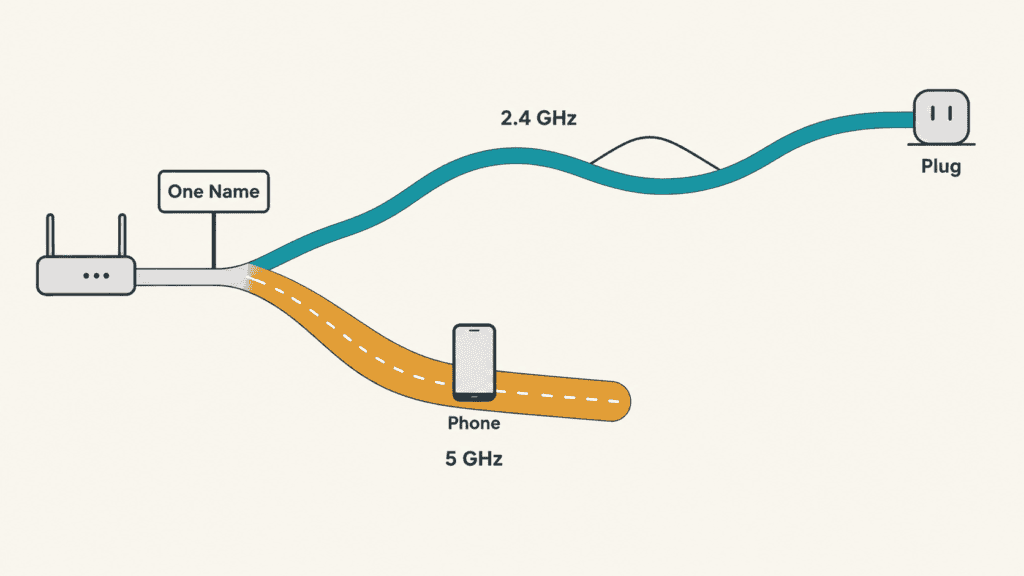
They are two radio bands your router uses to send WiFi. Picture two roads leaving the same house. Both lead to the internet, and most devices drive on one at a time. A router that offers both is called dual-band, and most current home routers are.
2.4 GHz vs 5 GHz: Where the Confusion Comes From
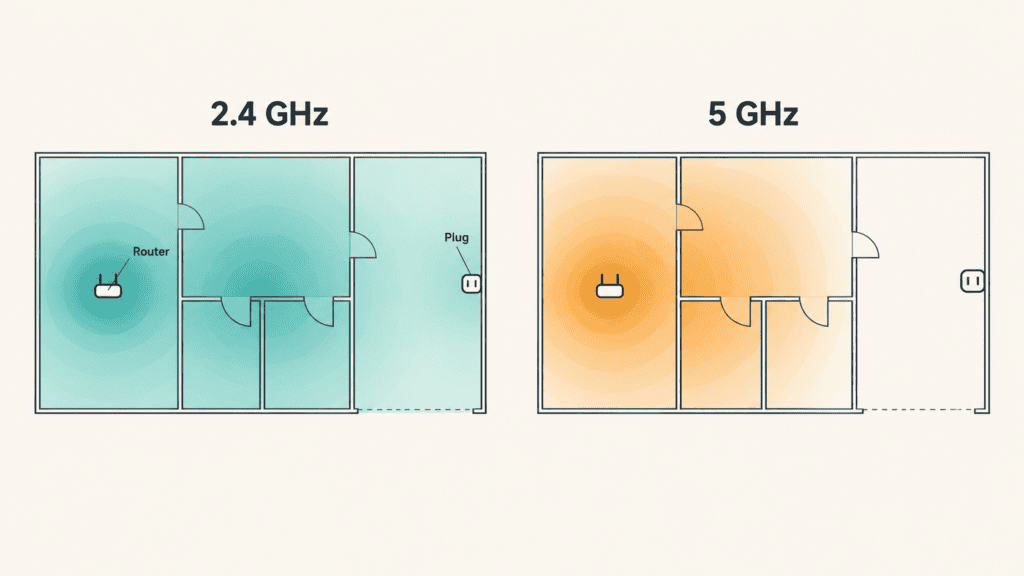
One Band Reaches Farther, the Other Runs Faster
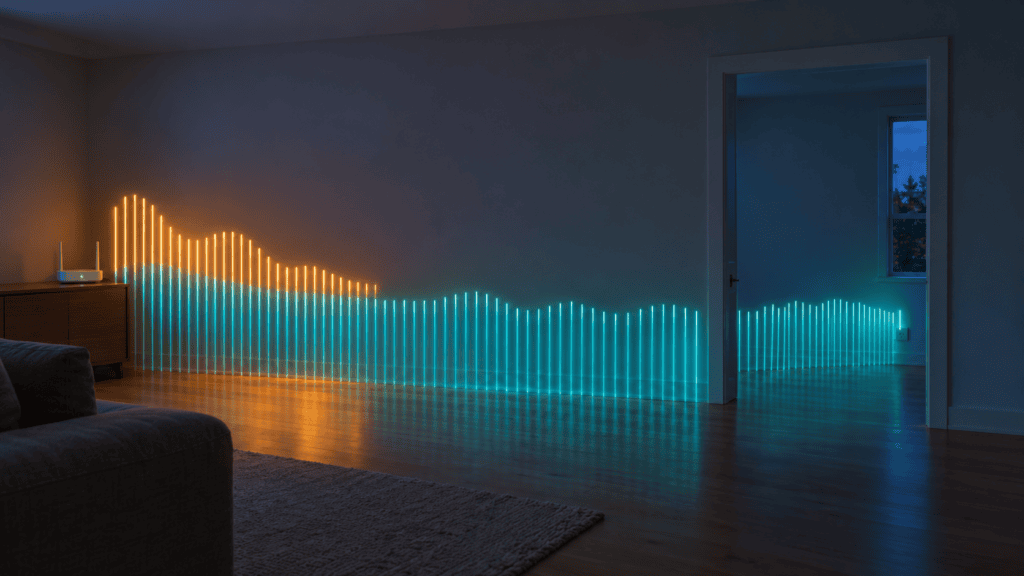
Of the two, 2.4 GHz has the longest range and the most wall penetration, with a typical top speed near 100 megabits per second. 5 GHz can reach about 1 gigabit per second, but over a shorter distance.
A smart plug sends a few bytes at a time. On, off, a schedule. Speed means nothing to it. Reaching the garage means everything.
Most Smart Devices Carry a 2.4 GHz Radio Only
The setup instructions for a typical smart plug put it plainly: the plug requires a 2.4 GHz connection and does not support 5 GHz networks. The radio is a physical part, so no app update adds a second band later.
This is not true of every device. Many cameras, speakers and streaming sticks use both bands, so read the box. Devices that run on Thread or Zigbee skip WiFi entirely, which the guide to what the Matter logo means covers.
One Network Name Hides Two Bands
Most routers now give both bands a single network name and decide for you which band each device gets. Makers call this band steering or Smart Connect. Stand near the router and your phone lands on 5 GHz without telling you.
During setup, the app hands your network details to the new device. The device is listening on 2.4 GHz while your phone is on 5 GHz, and with some routers and apps, setup fails. The app reports a failed connection and says nothing about bands.
⚠️ Before you send it back: Three failed attempts do not prove the device is faulty. Check the band before you box it up for a return.
5 GHz Is Not 5G
5G is the fifth generation of cellular service, and it comes from your phone carrier. 5 GHz is a WiFi frequency inside your house. The two have nothing to do with each other. Some routers add 5G to the end of the faster network’s name, which is where the mix-up starts.
Newer Routers Add a Third Band
Routers labeled Wi-Fi 6E, and many labeled Wi-Fi 7, also broadcast on 6 GHz. It is built for recent phones and laptops. A smart plug ignores it, so the same rule holds: the plug needs 2.4 GHz.
How to Get a 2.4 GHz Device Connected
Work down this list and stop at the first step that works.
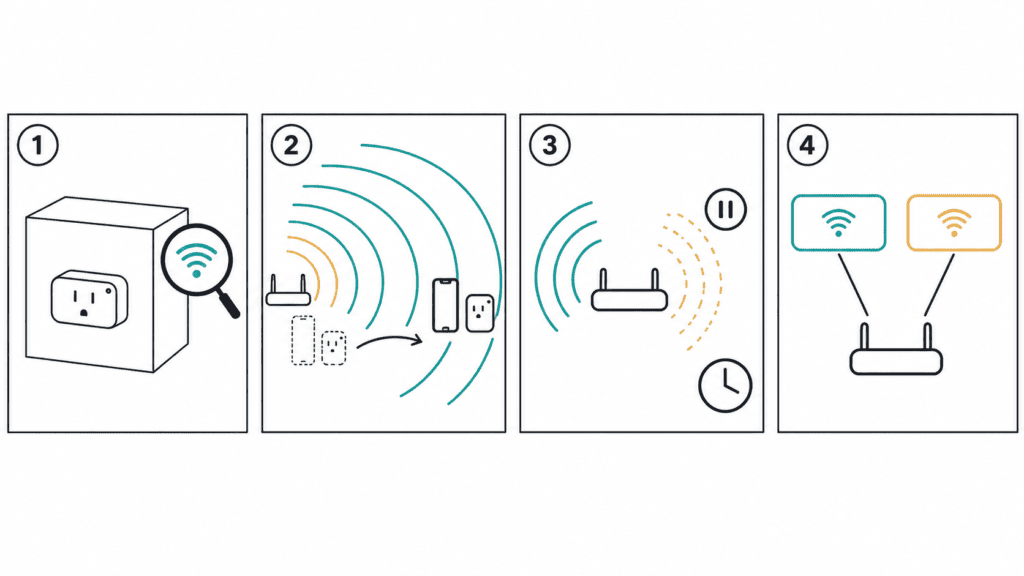
- Confirm the requirement. Look for the words 2.4 GHz only on the box, the quick-start card or the product page.
- Walk away from the router. Put distance between the router and the device, because 2.4 GHz reaches farther. Two or three rooms away, your phone is more likely to drop to 2.4 GHz, and setup often goes through.
- Pause the faster band. Some mesh apps have a switch for this. It pauses 5 GHz and 6 GHz for a short time, then brings them back automatically. On a standard router, turn 5 GHz off in the settings, pair the device, and turn it back on.
- Give each band its own name. In the router settings, switch off band steering and name the two networks differently. Join the 2.4 GHz one on your phone, then pair.
💡 Bring 5 GHz back: A paired device remembers its network, so you can restore 5 GHz as soon as the app confirms the connection.
With the plug online, the next step is a schedule. The guide to smart plug automation has five routines to start with. If a device pairs but keeps dropping in a far room, that is a range problem, and the guide to fixing weak WiFi in one room covers it.
What You Give Up by Splitting the Bands
Band steering exists for a good reason. It moves your phone and laptop to the faster band when you are close to the router and to the longer-reach band when you are not. Split the names and that choice becomes yours, every time. A laptop left on 2.4 GHz will feel slow, and you may not think to check why.
Leaving 5 GHz switched off is worse. Every phone, TV and laptop in the house slows down to help one plug.
Some mesh systems do not allow a permanent split at all, which is why they offer the temporary pause. Use steps 2 and 3 first. Split the names only if you add devices often and the temporary fixes keep failing.
Frequently Asked Questions
Is 2.4 GHz or 5 GHz better for smart home devices?
For plugs, bulbs and sensors, 2.4 GHz. They send very little data and often sit far from the router, so range matters more than speed. Cameras and streaming devices that support both bands do better on 5 GHz when the signal is strong.
Can I switch a smart plug to 5 GHz?
Not if it has a 2.4 GHz radio only. The band is set by the hardware, and no setting in the app changes it.
Will pausing 5 GHz disconnect my other devices?
Briefly, for some. Phones and laptops move to 2.4 GHz for that short time and move back when 5 GHz returns. A video call or a stream may stutter, so pick a quiet moment.
Do I need a new router to fix this?
No. Any dual-band router already broadcasts the band your device needs, unless 2.4 GHz has been switched off in its settings. The fix is getting your phone and the device onto it at the same time.
Read the Box Before You Open the App
Before you plug in the next device, find the line on the box that names its WiFi band. If it says 2.4 GHz only, start setup two rooms from the router. That one habit settles 2.4 GHz vs 5 GHz before it costs you an evening.